Pic. 1
Pic. 2
Pic. 3
Pic. 4
Pic. 5
Pic. 6
Pic. 7
|
Pic. 1 Pic. 2 Pic. 3 Pic. 4 Pic. 5 Pic. 6 Pic. 7 |
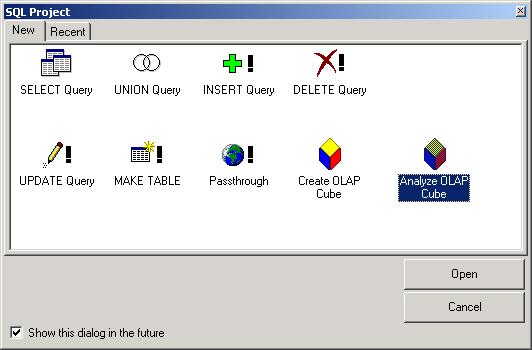
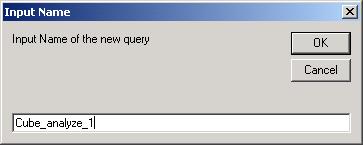
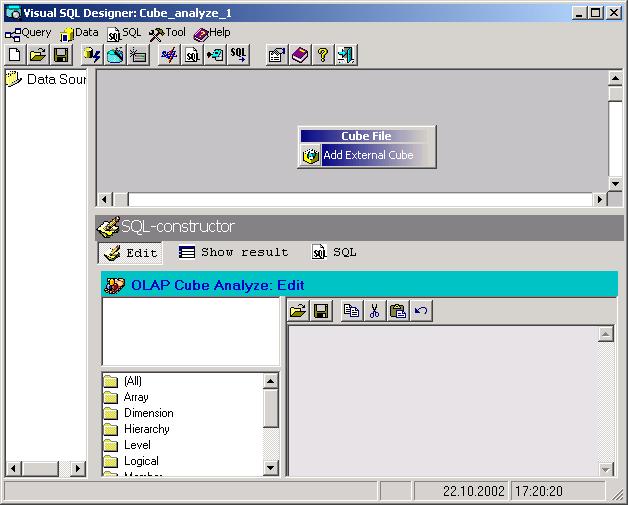
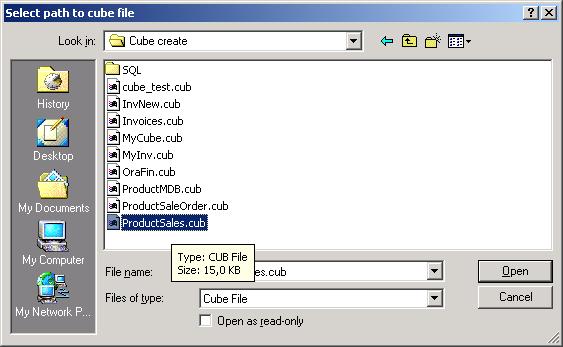
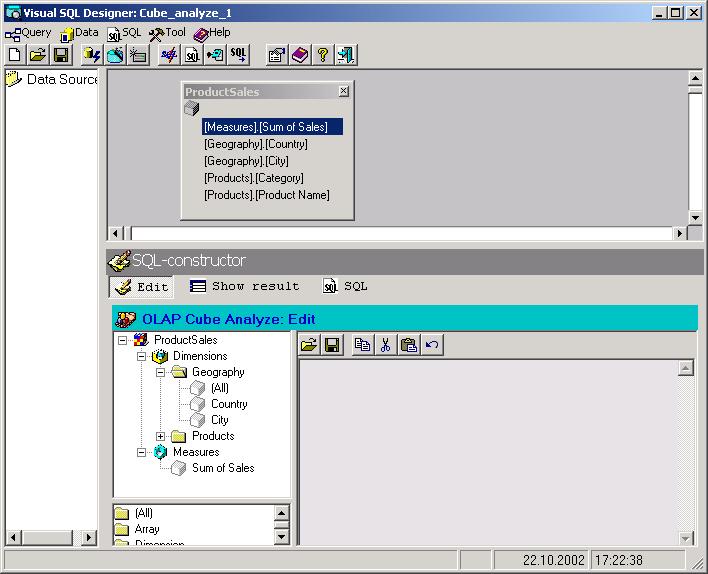
Choose menu item "Query\New" in the main menu of the program. In the opened dialogue choose an icon "Analyze OLAP Cube" (Pic.1). Enter the name of new query in the opened dialogue (Pic.2). Press the right button of the mouse on a working region of the program. In the opened menu choose item "Add External Cube" (Pic.3). Choose cube file which you want to analyse in the program (Pic.4). After a choice of a cube file You may see a new table in working area of the program. Choose mode EDIT and You can see structure chosen cube file (Pic.5).
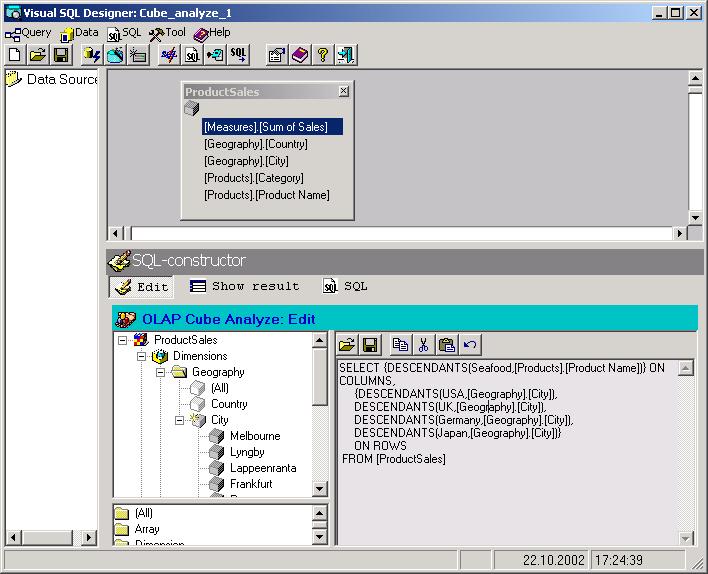
You can see in a editing window all measurements of a cube. And their values which you can receive in a tree of a cube by clicking twice on the left button of the mouse on appropriate dimension are accessible to you (Pic.6). For creation a query simply drag the value chosen you from a tree of measurements of the cube to working SQL area and drop it. For your convenience there is an opportunity of a choice standard templates of MDX which are grouped on categories in tree. You can keep the expression created by you in a file. And also can load the kept early expression from a file on a disk. To execute the query created by you is simple enough to click on button "Execute" on the main toolbar of the program.
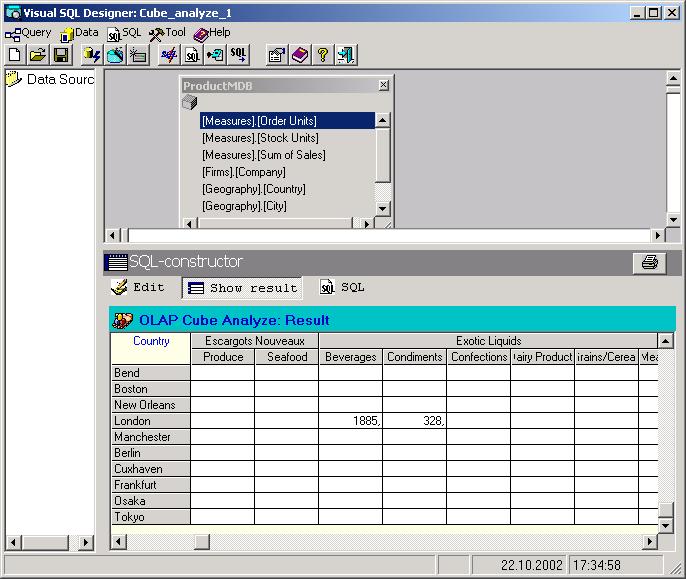
To execute the query created by you is simple enough to click on button "Execute" on the main toolbar of the program (Pic. 7). For viewing result of query press the panel "Show Result".
Technical support:
E-Mail: support@konst_one.mtu-net.ru
WWW: Web support